
Site Configuration
Cloudflare Turnstile - Keys
Login authentication, registration and captcha
Captcha Settings
Captcha uses Turnstile from cloudflare. Create or login to your cloudflare account Cloudflare
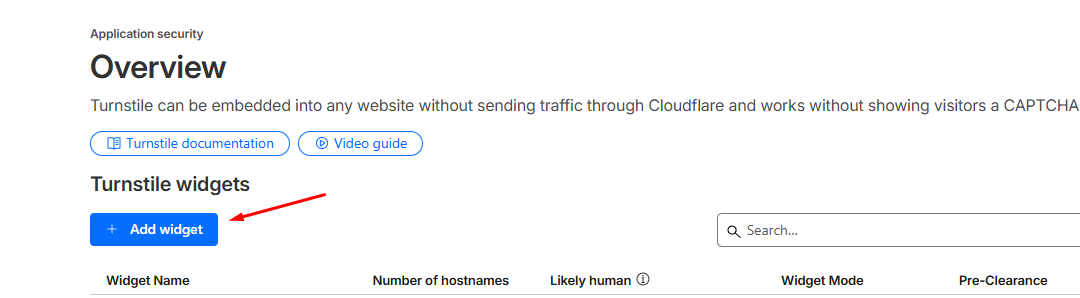
- Under Application security Navigate to Turnstile and click Add Widget
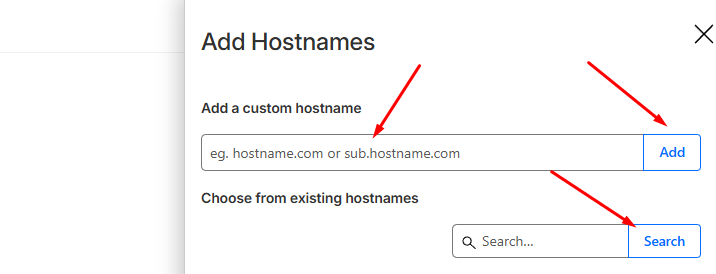
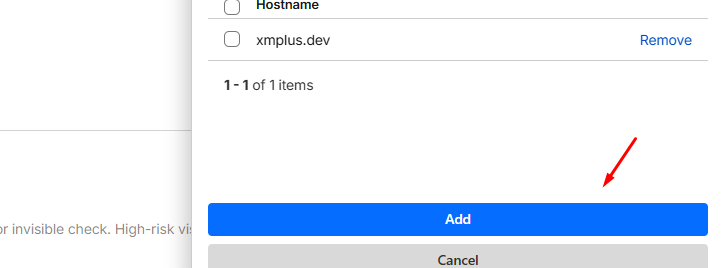
- Chose a Widget name and Add Hostnames. Add or search hostname if already added and click ADD button below.
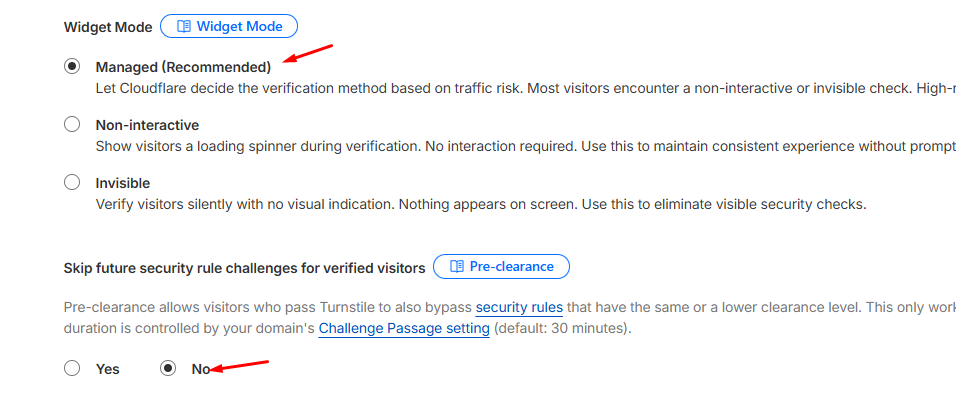
- Widget Mode Managed (Recommended) unchanged. **Skip future security rule challenges for verified visitors ** should be NO and click CREATE.
Site Key: Copy and use as Captcha Site Key in panel
Secret Key: Copy and use as Captcha Secret Key in panel
Login Settings
Account login methods and 2-step settings
Telegram Login (OAuth)
- Open @BotFather on Telegram
- Create a bot or use existing one via /mybots
- Set your domain: /setdomain → select your bot → enter your domain (e.g., demo.example.com)
GitHub Login (OAuth)
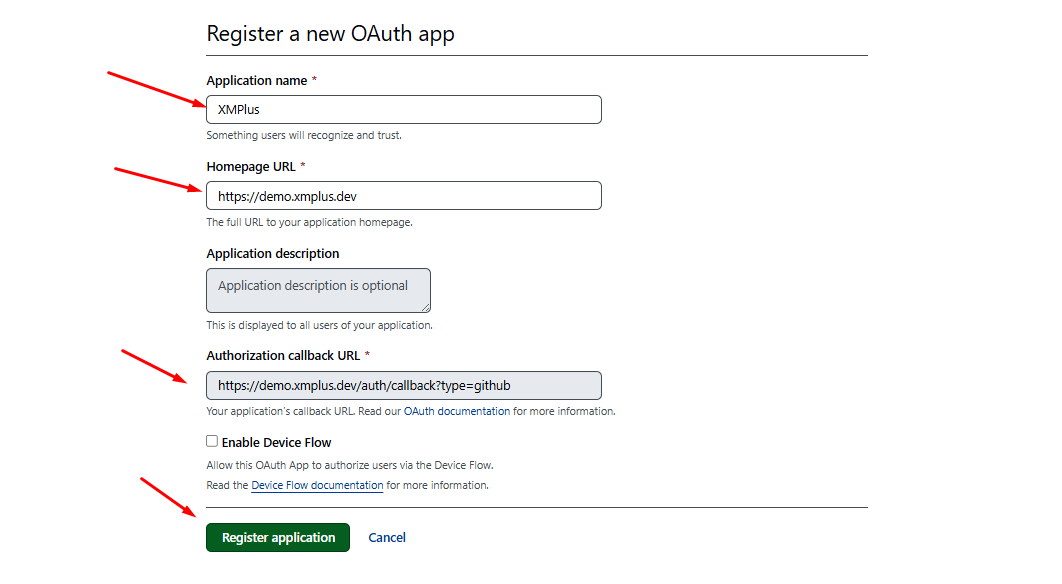
Create a GitHub OAuth App
- Go to GitHub → Settings → Developer Settings → OAuth Apps → New OAuth App
- Set Authorization callback URL to http://localhost:3000/auth/callback?type=github . Replace
http://localhost:3000with your frontend UI address - Save your Client ID and Client Secret
Google Login (OAuth)
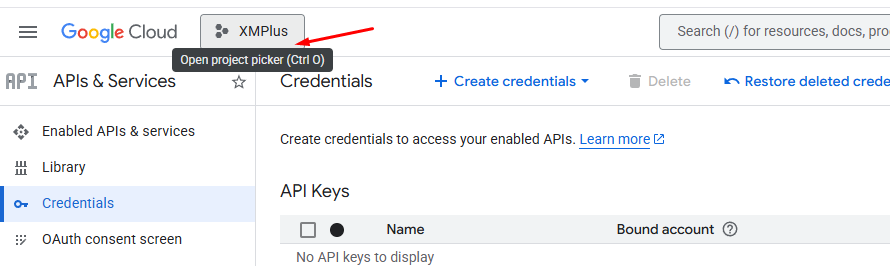
Create a Google OAuth App
- Go to console.cloud.google.com
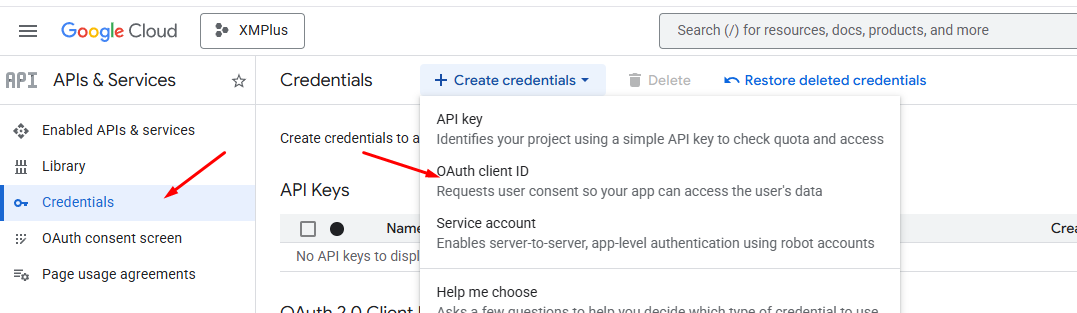
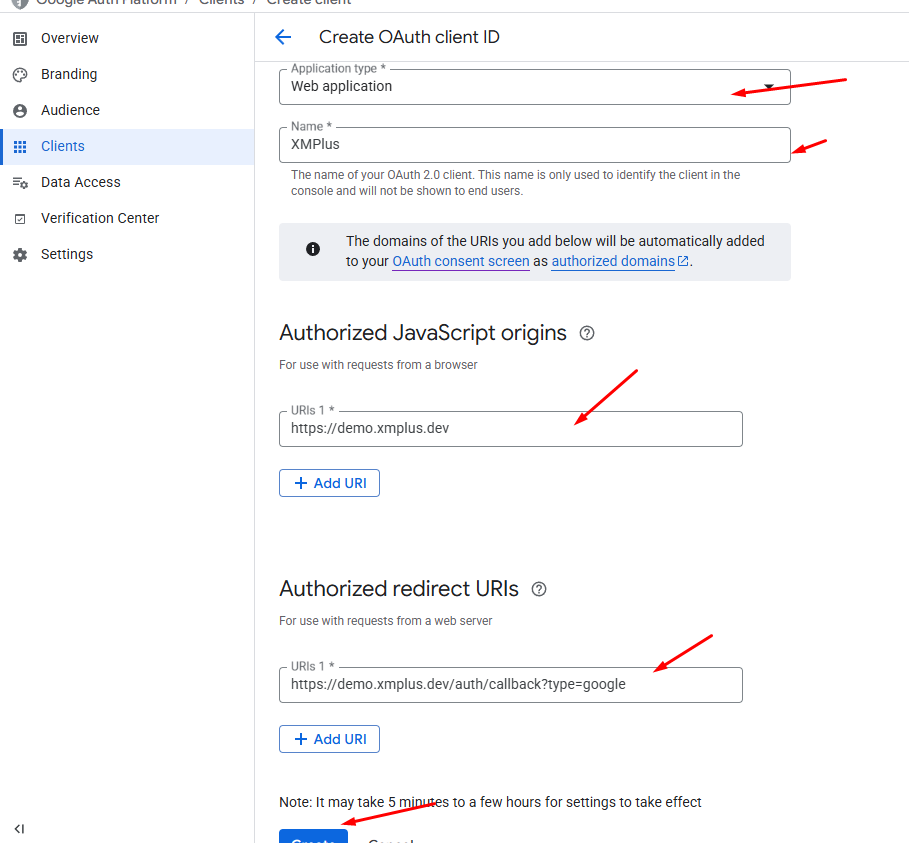
- Create a project → APIs & Services → Credentials → Create OAuth 2.0 Client ID
- Set Authorized redirect URI to http://localhost:3000/auth/callback?type=google .Replace
http://localhost:3000with your frontend UI address - Save your Client ID and Client Secret
Audience
Google Cloud Console → APIs & Services → OAuth consent screen -> Audience
Select External - for any Google user (choose this for public apps)
Branding
Google Cloud Console → APIs & Services → OAuth consent screen -> Branding
- Fill in
- App Info
- App name
- User support email
- Developer contact email
- App logo (optional)
- App domain / homepage URL (optional)